Wednesday, 4 September 2013

League Management System Update

The League Management System has been running successfully for about a year now and many organisers will be about to launch into a new season so today we released some updates which should hopefully simplify this process a little.

It was hoped that we'd be able to handle the full promotion and relegation of teams, but unfortunately this proved a little too complex, with a myriad of different scenarios - split divisions, withdrawn teams, incomplete leagues - to cater for. So you'll have to handle this yourself, but we've tried to make it easy.

To advance your league to a new season, follow these steps.

1. Copy the league

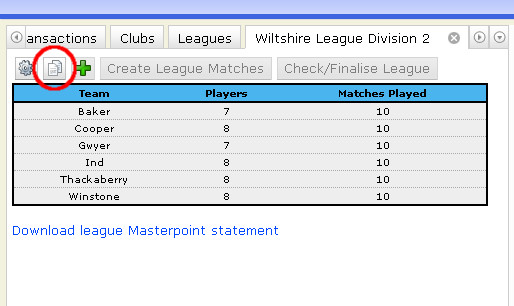
The first step is to make an exact copy of the league. Select any division from the league (doesn't matter which) and you'll see a new copy icon, as in the image below.


If you click this button and confirm that you want to proceed, you'll be given another league. This league will have the same division names, the same team names, the same captains and the same players. It won't copy the match data.

You may wish to rename the divisions if you want to add a reference to the year. We do intend to implement a way of archiving old leagues that have been completed.

2. Put the teams in the right place

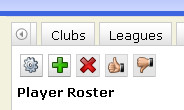
If you have promotion/relegation in your league the teams will now be in the wrong division and you'll need to sort that out. To do so, select the team you want to move and you'll find three new buttons.


The red cross will delete the team (maybe a team has withdrawn or you're resizing your league). The thumbs up will promote the team to the next highest (lower numbered) division and the thumbs down will relegate them to the next lowest (higher numbered) division. It's important to note that for leagues with unusual division configurations e.g. a "Division 2 North" and a "Division 2 South" you might need to promote a team more than once to get it into the right place. If you make a mistake or misclick just go to the place where the team has just moved and move them back in the other direction.

You can also add new teams just like before.

3. Create matches

This is the same as before. When you're happy that all the divisions have the correct teams you may go ahead and create the matches by pressing the 'Create League Matches' button. Important: once you've done this you cannot add new teams, delete teams or promote/relegate teams.

And then you're good to go. You can, as always, still change team names, team captains and add or remove players. And that should be all. As always, if you have any questions please email or leave a comment.

Tuesday, 22 January 2013

EBU Discussion Group

We have set up a Brighton Discussion Group, so you can find a bridge partner; provide tips on where to park or stay; recommend your favourite restaurant; or tell everyone about your favourite Brighton event. Join us below and please help other players enjoy Brighton as much as they can.

Wednesday, 27 June 2012

New League Management System

Today we're pleased to announce that the new League Management System is live and available for all clubs, counties and districts to use. We hope that this will greatly simplify the administration of league events, including dealing with team personnel, master points and pay-to-play charges. Some organisers already have very good systems in place to do this so we're not forcing anybody to switch, but we hope this service will be of some value.

The LMS works within our online members area, so you'll need a user name and password in order to use it. Clubs and counties have this already (if you don't, please check with the treasurer or scorer). What used to be called Districts, i.e. entities which run leagues but which are not affiliated clubs or counties, will need to request a user name and password from the EBU.

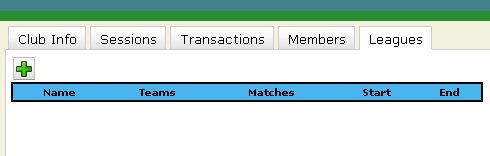
Once you're logged in you should now see an additional 'Leagues' tab in your members area. If you don't see it then you may still be looking at the old version of our members area and will need to clear your browser cache.


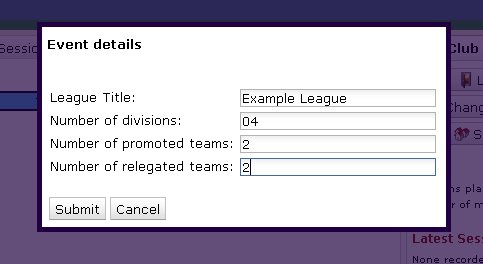
To create a new league, click the green plus icon and you'll be presented with some options.


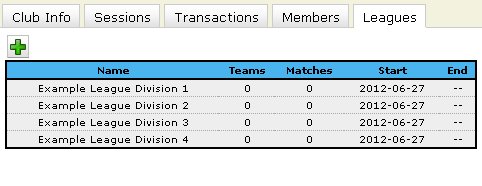
Enter the league title, the number of divisions in the league and the promotion/relegation criteria and then click 'Submit'. Wait a few seconds and you should see something like this:


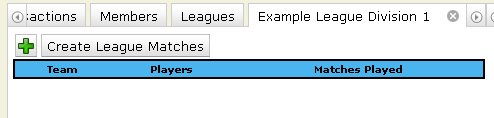
With the league set up, we now have to look at the individual divisions. To manage a division of a league, click on the line you're interested in. In this case, we'll click on Example League Division 1, which gets us here:


There are no teams in the league yet, so click on the green plus icon to add one:


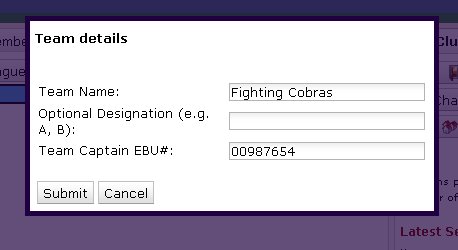
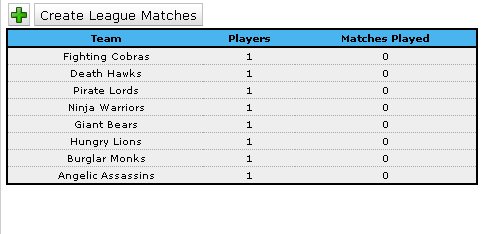
Enter the team name and the captain's EBU number. You can also optionally enter a suffix, for example in a club league you could have Aylesbury A and Aylesbury B - 'A' and 'B' are the suffixes. Let's add some more:


When you're finished adding teams to the division, it's time to create some matches.

Important: make sure you've added all the teams before you create the matches. Once the matches are created you won't be able to add more teams.

Clicking the 'Create League Matches' button asks you if it's a single- or double- round robin i.e. if each team plays each other team once or twice. Submit your preference, wait a few seconds and the matches will be ready.

In an ideal world this is where the league administrator's involvement ends, at least until the end of the season. The team captains that you have designated are now able to log into their own Members Area to update their team information and submit match results. Of course, some captains will be either unable or unwilling to do this so there may be a need for some further intervention. The rest of our instructions are from a team captain's point of view, but the functionality is identical for the league administrator.

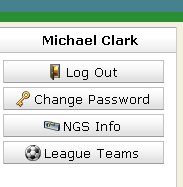
When a player logs on to their Members Area they'll see a button on the right-hand side if they're a part of any league:


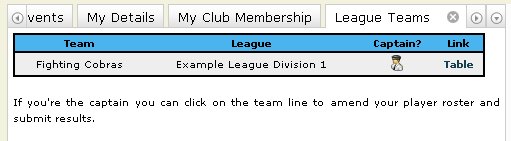
Clicking this will bring up a table like this:


This shows the team name, the league it's a part of, whether or not you're the captain of the team and finally a shortcut to the league results table. If you're the captain you can click on the line to bring up some information about your team.


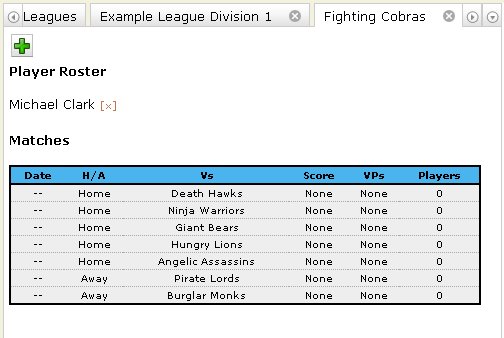
Under 'Player Roster' you can see the list of all the players registered for this team. You have been included by default, but if you're of the non-playing variety of captain you can remove yourself by clicking the small cross by your name. Under 'Matches' you can see a list of all the matches for this team for the season.

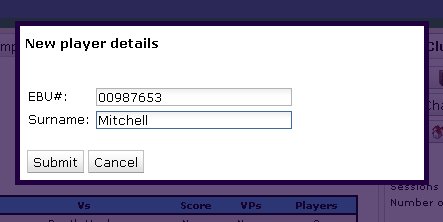
To add a player to the roster, click the green plus icon.


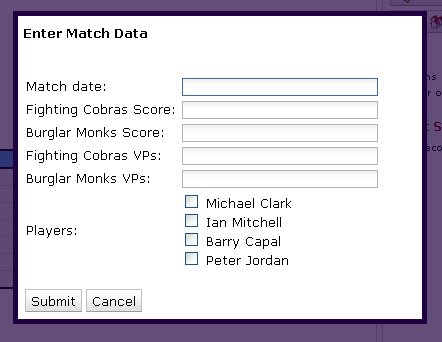
To amend the details of a match, click the appropriate line in the match list:


Enter as much information as you can and then check the boxes of the players who played for your team. This isn't final - you'll be able to go back and correct any mistakes or add some data which you left out.

Both captains will be able to amend the match data, but the team lineups can only be entered or changed by the captain of that team - after all, they're the ones who should know best who played!

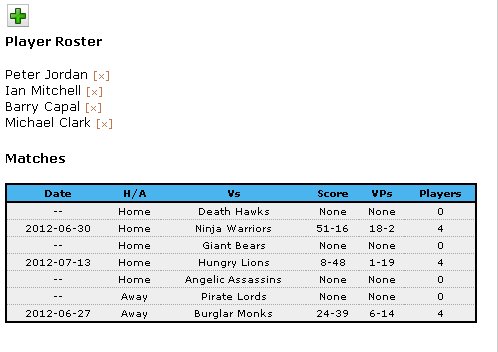
Once a few results are in the table might look like this:


We can now see how this will look in the public results table:


This gets updated as soon as the results are in and will reconfigure itself according to the new ranking. You can see the real version here.

I don't see a feature I need!

There are dozens of different sorts of leagues being run across the country and I'm sure there's something you do which we can't do. If so, please let us know. We should be able to deal with most peculiarities, although some might be more work than others.

What about teams-of-eight leagues?

We don't enforce any limits on the number of players per team and it will work the same way for teams of four/six/eight/twelve/thiry-one! At the end of the season you'll be charged based on the number of people that play in the matches, so it's important that you record this correctly after every match.

What about knockout events?

These are on their way and will be available as another type of event when you use the 'Create New League' function.

There's no way I'll be able to get my captains to use your Members Area!

That's a shame. You could just make them do it, or make them pass the captaincy onto someone who's willing. It's really not very difficult once you've used it once. If they're steadfast in their refusal, though, then don't worry - the league administrator has the same abilities as the team captains. In the teams list page (where you see the 'Create League Matches' button) you can click on the team in question and then you'll be able to amend their players list and match results just as if you were them.

I have a question that's not covered!

Sigh... Drop us a line and we'll see if we can help you!

Your new system is a load of rubbish!

Perhaps it is! Let us know about it, though, and we might be able to do something. We're always keen to get feedback on new features like this.
Thursday, 1 March 2012

National Grading Scheme

The National Grading Scheme (NGS) has just gone live and there have been some significant updates to the members area. Also, there is now a new NGS Rankings page which you can visit to see the highest graded players and partnerships in the country, search for your friends and see some statistics about how the players are distributed amongst the various grades.


Here you can see the top players. The navigation links in the top left take you forward and backwards through the list and the 'Hide Evolving Grades' link will remove the players who haven't yet played 1000 boards (shown with a grey background with an 'E' icon on the right).

Search is simple - just type the surname of the person you're interested in in the box at the top right and hit enter. If you're searching for a common name it can get a bit slow, so you can add a comma after the surname and then the first few letters of the first name to narrow it down further. For example, try "Smith, P".


Members Area

In the members area you'll see three new columns in your sessions list. These are:

Sopp - the strength of your opponents in that session
Par - your percentage score compared with 'par' for that session
Grade - your resulting grade after that session


If you don't see these values for a given session it means it hasn't been processed by the NGS. This could be for a number of reasons, including: it's too recent (so wait a few more days), it's a teams event, it's a Sim Pairs result (only the local club heats are counted) or something went wrong.

As with many of the tables in the members area, you can click on the headings to sort them. So you can easily check just when it was that your grade was at its highest!

On the right you'll see a new button called 'NGS Info', under 'Change Password'. Click this to get up a new page which shows you information about your grade and your partnership history. You'll see all of your partnerships listed, but there will only be grades for the ones where you've played 300 boards or more.

Club Area

Club administrators will now also see some new features. The Members List will include a Grade column, with an icon indicating their Grade Band. Again, you can click on the header to sort it and find out who the best player in your club really is. The sessions list also includes a new column.


Here you can see the new NGS column, which will show the Strength Of Field for that session when it has been processed by the NGS (you can sort on this field too). The egg-timer icon indicates that the session is too recent to be processed. A red cross will indicate that it couldn't be processed for some reason. Hover your mouse over the icon and it will give you a description of why this happened.

Further Information

This was just a quick walk through the new features. For a more in-depth look at how the NGS works, take a look at the Full Guide, which includes comprehensive FAQs. Further queries can be addressed by email to ngsqueries@ebu.co.uk. Please note that we may not respond to your query directly but your email will be read and you'll be included in any bulk responses we send out in future.

Tuesday, 6 December 2011

EBU Test Sim Pairs

Today we're running a test of our new Sim Pairs software. We think the submissions process is very simple for clubs to use, but here are some short instructions just in case.

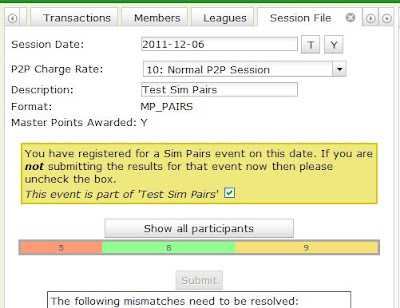
When you've scored your event and gone to our website to submit the P2P file as you usually do for a club session, you'll see a message appear in a yellow box:


This will only appear if a) you've registered for the Sim Pairs event via the members area (and so appear on our list of clubs) and b) you've entered the correct date for the session. If you've done both of these things and are still not seeing the message then see below.

If the session you're submitting is not for the Sim Pairs then uncheck the box and carry on as normal. Otherwise, leave it alone and when you submit the session (successfully) it will automatically submit it for Sim Pairs scoring too. A few minutes later you'll be able to see your club appear in the club list.

Clubs which are running more than one Sim Pairs heat should be able to do exactly the same thing. We'll detect that you've already submitted one file and will append a "(B)" to your club name to distinguish you.

If you wish to delete the session you'll be able to do so as normal but currently this won't delete the Sim Pairs entry. That's something we need to fix for the future. For now, please email us with your club number and we'll delete it for you.

Clearing your cache

If you've logged in to the members area recently it may be the case that your computer will remember the old version of the web page in an effort to speed up the page load. This will mean you won't see the Sim Pairs updates we made live last night. To get round this you need to tell your web browser that you want to clear the old pages. Instructions for all the web browsers can be found on this page.


Finally: if anything does go wrong please be patient with us - we've never run anything of this size before so there could be several unforeseen problems. We should be able to recover from most situations without you having to resubmit, though. If your session isn't listed and you're sure that you submitted it correctly then please don't continue to submit it again and again - we may have deleted it to correct some mistake. Send us an email if you're not sure.

Monday, 18 July 2011

New P2P Charge Rates

On July 1st we started using a slightly different system of P2P Charge Rates for our submission files so that we can cope with licensed events and differentiate between some of the zero-rated events. Don't worry — for the majority of club sessions this will make no difference at all. The old '1' rate is now renamed '10', but if you do submit a '1' we'll convert it for you.

The difference will be when you submit a zero-rated session. Instead of a blanket '0' rate, we now need to know why the session is free. For example, if it's your annual free session (for a summer party, say) then it would have rate '03'. If it's a teaching session with up to 16 boards then it would have rate '04'.

We've published full details of all the charge rates on our website:
The major scoring systems should now support these new charge rates, though you may have to update them to the latest version. You can also select the charge rate when you submit the file — you'll see a drop-down menu like this:


Just choose the rate that matches the session and it will be accounted for correctly.

Clubs which have been submitting licensed novice sessions at half-rate can now just use code '22' and we'll add it to their next P2P statement correctly.

New Club Members Area

Today we're updating the members area for club users, tidying up the layout a bit and streamlining a few of the functions. The first thing you'll notice is that the list of members has moved from the right panel to its own tab. Instead, you'll see a summary of recent activity on the right.

The sessions list has been updated and is now split into years, so you don't have to wade through your 2010 sessions to get to the latest ones. It will also sort with the most recent sessions at the top, or you can click on the column headers to sort it as you like. As before, clicking on the session will open up some more information about it.


The membership management features are relatively unchanged, although they look a bit tidier in some areas. You can now sort by EBU number as well as by name and it's a little easier to copy-and-paste the membership list into a spreadsheet or other document.

The major changes, though, are to the submission of pay-to-play files. When you submit one you'll see a screen a little like this:


Instead of showing the full ranking list, we're showing only the important bits — the people who mismatch and need to be resolved. This puts them all in one place and for large clubs with several visitors it should save a lot of scrolling. If you want to see the whole list you can click on 'Show all participants' and it will offer you the usual view.

As before, you click on the red cross to sort out any problems, although there is now an added 'Guest' button to quickly choose that option (the green question mark next to the red cross). The red cross takes you to a page like this:


This gives you the same options as before but all on one page so if your choice doesn't work out you don't have to go back to the beginning again. In the middle (3) you can select them as a guest or create a new record for them. At the top you can search by name (1) or EBU number (2). Search results will appear at the bottom (4) and you simply click the 'Select' button by the correct record. To save you a bit of time, the system will automatically search your membership list for anyone with the same surname and present them to you as an option.

We've tried to listen to the many helpful suggestions we've had over the past year and we hope these changes are positive ones. If you do find anything not working as it should or you have any further suggestions then please send us an email or leave a comment. And if things are really broken for you then you can still go back to our old members area for the time being.